
How to choose photos for an AI rap video
Choose a clear portrait, two separate photos or a shared image and get them ready for the studio.
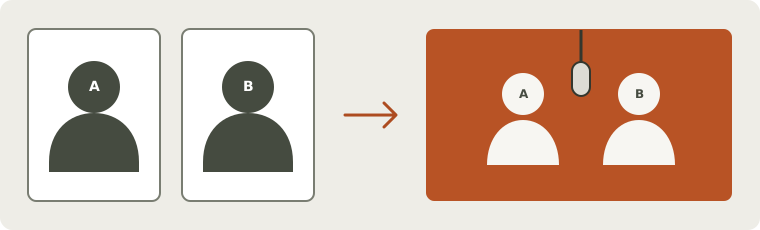
Start with the people you want to see
Choose a photo where you can recognize the person without guessing. Keep the face naturally lit, in focus and visible around the mouth. An image that looks good as a tiny profile picture may still hide the details a moving performance needs. Avoid motion blur, strong beauty filters, a hand across the face or a microphone already covering the lips.
Use photos you own or have permission to upload. Permission to prepare a private draft and permission to publish a finished performance are separate choices. Decide with the people pictured how you intend to use the result.
One portrait, two portraits or one shared photo
One clear recognized performer prepares a Solo draft. For two separate photos, use one performer in each: the first photo maps to the left, the second to the right. They do not need to have been taken together. Similar eye level and reasonably comparable lighting make the pair easier to inspect.
A shared photo can contain up to two supported performers. Keep both faces visible and check the original left-to-right order. A crowd photo is not a shortcut: the studio does not silently choose two subjects from a larger group. Crop a copy or replace it. If you need the full workflow, continue with the two-photo rap guide.
Check the file before changing the image
The editor accepts JPG, PNG, WebP and HEIC still photos up to 20 MB each, with at least 320 pixels on both sides. HEIC is converted to JPEG in the browser before explicit upload. If conversion fails, export a real JPEG or PNG using a photo app; changing the filename extension is not a conversion.
A larger file is not automatically a better reference. Upscaling a blurred image cannot recover the person’s missing features. Try another original portrait before spending time sharpening a poor source. Keep an untouched copy so you can compare what an edit changed.
Understand automatic performer detection
The browser checks for people, cats and dogs and prepares at most two performers. You do not need to find a separate Solo/Duo or person/pet switch. Review an uncertain result rather than accepting the wrong subject. Empty, unsupported or over-two results need a retry, crop or replacement.
For separate photos, check each image independently. For a shared photo, inspect both subjects and their order. Detection can miss faces or animals; it is not recognition of someone’s personal identity and does not certify how the generated face will look.
See your portrait in motion
A clear photo gives the performance a useful starting point. Watch the face through movement and listen to the verse before sharing; facial details and mouth timing can vary.
For a pair, follow both people through the handoffs. The quality guide has practical next steps if you want to improve a result.
Prepare the next step
Once the reference is clear, choose one idea and a short verse. Save the browser-local draft if you need to return later; it lasts 24 hours. Saving does not spend generation credits. Check the current quote and availability when you are ready to submit.
Prepare a photo-led rap, follow the complete solo walkthrough, or write short lyrics.
Questions before you start
Can I use a group photo with more than two people?
Prepare a separate copy containing only the intended one or two subjects. The studio does not automatically choose two people from a crowd.
Will the detector tell me whose face it is?
No. It finds supported subjects and their order; it does not verify a person’s identity or photo permission.
Should I enlarge a small profile picture first?
Use a larger original if possible. Upscaling cannot restore missing facial detail; the file still needs at least 320 pixels on each side.